
Plan and install · Section 1
How Doza works
What the device does, what a complete installation includes, and the install order.
A Doza Duo has two pumps that dose chemical when your wash controller signals them. Each dose is a number you set, a flow rate and a run time, instead of an injector tip or valve. DozaLink at dozalink.com is where you change those numbers and see what every site uses.
The parts
| Pump 1, Pump 2 | The two pump heads. Each doses one chemical. |
|---|---|
| Relay 1, Relay 2 | The two inputs for wash-controller signals. Either input can run either pump, or both. |
| Setup mode | The device’s own Wi-Fi and setup page, used at the device with a phone. |
| DozaLink | The website for managing devices, doses, chemicals, and reports from anywhere. |
How a dose happens
- The wash controller turns on the output for a wash function, such as presoak.
- Doza sees that signal on Relay 1 or Relay 2.
- The settings for that input decide which pump runs and how much it delivers.
- The device records the dose, and DozaLink turns it into usage and cost.
Doza works out each dose from pump movement and calibration. Settings are stored on the device, so wash-triggered dosing keeps working if the internet drops. A pump can also dose on a schedule you set, with no wash signal (Dose on a schedule).
What a complete installation includes
Supplied with Doza
- Doza Duo with two pumps installed
- Pump tubing for both channels
- 24V power supply with plug and cable (one supply powers two units)
- Wash-signal cable
- Label with the serial number and QR code
Provided by the site
- A power outlet near the device
- 2.4 GHz Wi-Fi at the mounting spot
- A wash-controller output for each chemical function
- Chemical containers, suction and delivery tubing, and injection points
Install in this order
Plan and install · Section 2
Check the site
Mounting space, power, Wi-Fi, wash signals, and plumbing to have ready.
Have these ready before install day.
| Mounting space | A wall or rack near the chemicals, out of direct spray, with room to open both pump heads. |
|---|---|
| Power | A standard outlet near the device. One power supply runs two Doza units. |
| Wi-Fi | 2.4 GHz Wi-Fi with internet at the mounting spot. Guest networks with a sign-in page don’t work. |
| Wash signals | A controller output for each chemical function, 24–120 V AC or DC when on. |
| Plumbing | For each chemical: a container, suction and delivery tubing, and an injection point on the wash line. |
| Calibration | A measuring cup, graduated cylinder, or digital scale. |
| Account | A DozaLink organization with an active subscription and the site added as a location. |
Check the Wi-Fi signal
Stand where the device will be mounted and check the 2.4 GHz signal on a phone. If it is weaker than −80 dBm, improve coverage before installing, for example with an extender, mesh node, or outdoor access point.
On iPhone, turn on the Wi-Fi scanner in Apple’s AirPort Utility (Settings → AirPort Utility). On Android, an app such as WiFiman shows signal strength. The numbers are negative: −65 is stronger than −80.
No Wi-Fi at all? Doza can run local-only, without remote changes, reports, or updates.
Plan and install · Section 3
Mount, power, and plumb
Mount the device, connect power, and run the chemical tubing.
Mount
Fasten the enclosure through its four flange holes with #8 screws (hole pattern 187.3 × 88.9 mm, 7.375 × 3.500 in). Leave room to open both pump heads, and keep the device out of direct spray.
Connect power
Plug the power supply cable into the device’s power connector. One supply’s cable splits to power two devices. Plug the supply into the outlet last.
Run the tubing
Each pump needs a suction line from its chemical container and a delivery line to its injection point. Keep the lines free of kinks. To tell the lines apart, name each pump’s chemical in DozaLink or add a label to the line.
Which pump is which
Run each pump briefly from setup mode or DozaLink (Prime and run a pump) so you know which head is Pump 1 and which is Pump 2 before you connect the chemicals.
Plan and install · Section 4
Wire the wash signals
Connect Relay 1 and Relay 2 to the wash controller outputs.
Doza has two signal inputs, Relay 1 and Relay 2. Connect each one to the wash-controller output that turns on a chemical function. When that output turns on, Doza runs the pump you assign to it in Set up wash triggers.
Supported signal: 24–120 V, AC or DC
Each input works with any controller output from 24 to 120 V, AC or DC. Polarity doesn’t matter, and every Doza is wired the same way. The output supplies the voltage; Doza doesn’t power the input.
Turn off power first
Turn off the controller outputs and unplug Doza before wiring. Have a qualified electrician connect 120 V signals.
The signal cable
| Wire colors | Input |
|---|---|
| Brown and white | Relay 1 |
| Blue and black | Relay 2 |
Connect it
- At the controller’s terminal strip or a junction box, find the output for the first chemical function and its common (neutral or return).
- Connect the Relay 1 pair across them: one wire to the output, the other to the common.
- Connect the Relay 2 pair to a second function the same way, or insulate its ends if unused.
- Make the connections with lever connectors or terminals inside the cabinet or a closed junction box.
- Plug the signal cable into the device and label each pair with its wash function.
- Restore power, then set up wash triggers and test each function.
Connect at the controller output. Don’t splice into another dispenser’s internal wiring.
Connect · Section 5
Connect to Wi-Fi
Open setup mode on the device and join the site’s Wi-Fi.
The device has its own setup Wi-Fi and page, called setup mode. Use it with a phone to connect the device to the site’s Wi-Fi. No app or internet is needed.
Open setup mode
- Turn the device off and on once. Setup mode opens during startup.
- On your phone, join the Wi-Fi network
DOZA-XXXXwith the passworddozasetup. If the phone warns there’s no internet, stay connected. - The setup page usually opens by itself. If not, go to
http://local.doza/orhttp://192.168.4.1/.
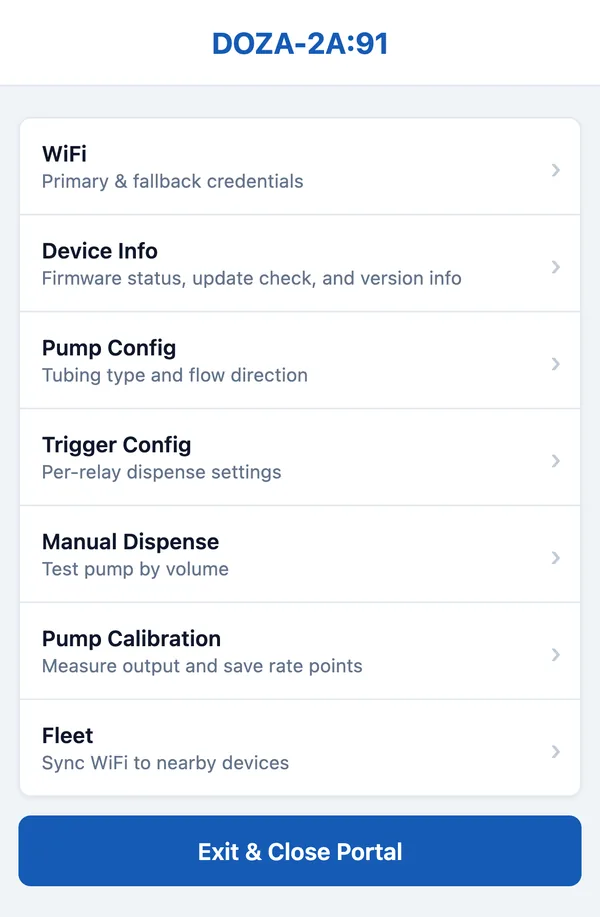
Setup mode closes after about five idle minutes, or when you tap Exit & Close Portal. Power-cycle the device to open it again. Anyone nearby with the password can use it while it’s open; an admin can lock pump settings from DozaLink.
Join the site’s Wi-Fi
- Tap WiFi and check that WiFi Enabled is on.
- Under Primary Network, type the 2.4 GHz network name exactly, and its password.
- Optional: add a Fallback Network to use if the first is down.
- Tap Save, then Exit & Close Portal.
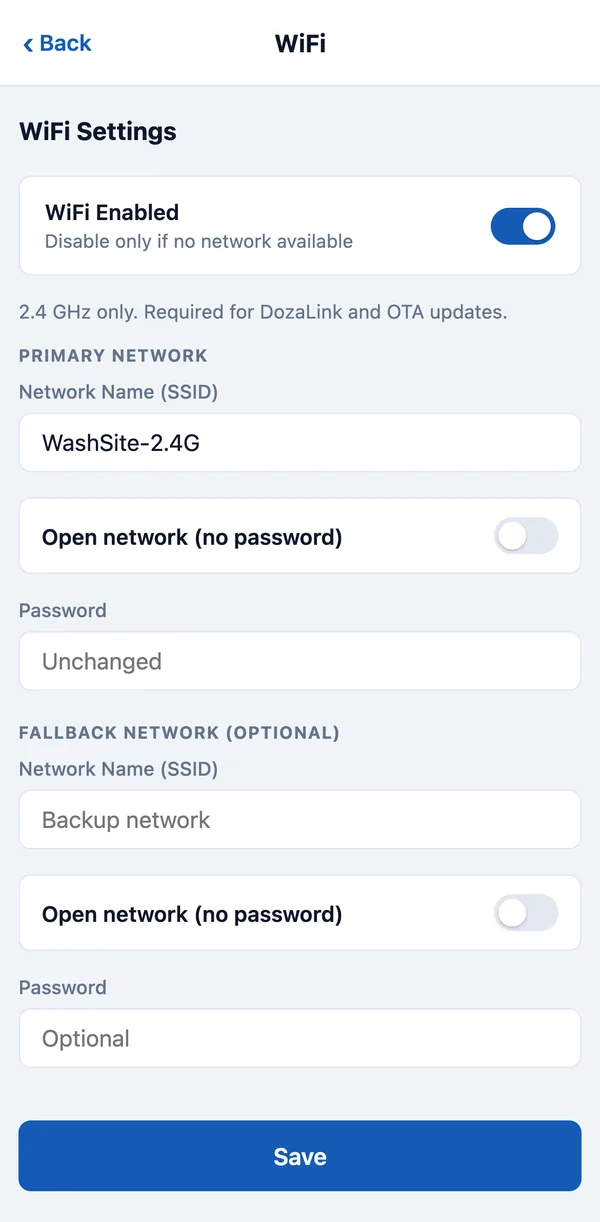
To check it, reopen setup mode and tap Device Info, which shows the saved network and checks for updates. After linking, DozaLink shows the device as Online.
Several devices at one site
Set up Wi-Fi on one device, then tap Fleet and Sync WiFi Credentials to send it to other devices that are in setup mode nearby. Check that each one comes online.
No Wi-Fi
Turn WiFi Enabled off and tap Save to run local-only. Wash-triggered dosing works normally; remote changes, reports, and firmware updates don’t.
Connect · Section 6
Add the device to DozaLink
Link the device to your account by scanning its label or typing its serial number.
Linking adds the device to your organization so you can manage it from dozalink.com.
You need
- An active subscription. The account owner starts it on the Billing page.
- Owner, admin, or operator access to the site.
- The device label with its serial number and QR code.
- The device connected to Wi-Fi.
Link it
- Open Devices and click Link device.
- Tap Scan QR code and scan the label, or type the Serial number as printed.
- Click Check serial number and check that DozaLink found the right device.
- Enter a Device name people will recognize, such as "Bay 2 presoak", and choose its Location.
- Click Link this device and wait for it to show Online.
Set up dosing after linking
A newly linked device starts with all wash triggers off and its factory tubing and direction settings. Then work through tubing and direction, calibration, and wash triggers.
If linking fails
Read the message, fix the cause (usually billing or Wi-Fi), and try again with the same label. A device belongs to one organization at a time; if it was used elsewhere, that organization must unlink it.
Lock on-device settings
An admin can stop pump settings from being changed in setup mode: on the device’s page, under On-device settings, click Lock local controls. Wi-Fi setup stays available. Click Allow local controls to undo it.
Unlink a device
On the device’s page, click Unlink device and type UNLINK. Its history is kept. If it is linked again, set up dosing again.
Set up dosing · Section 7
Tubing and pump direction
Match each pump to its tubing and set which way it turns.
Tell the device which tubing is in each pump and which way it turns. Do this before priming and calibrating.
| Setting | Tubing | Use for | Top speed |
|---|---|---|---|
| Standard | White | All chemicals except tire shine | 5.0 mL/s |
| Tire Shine | Black | Tire shine | 3.0 mL/s |
Match the setting to the tubing in the pump. It sets the top speed and the tubing-life count.
On the device
- In setup mode, tap Pump Config.
- Choose the tubing and the direction for each pump.
- Tap Save.
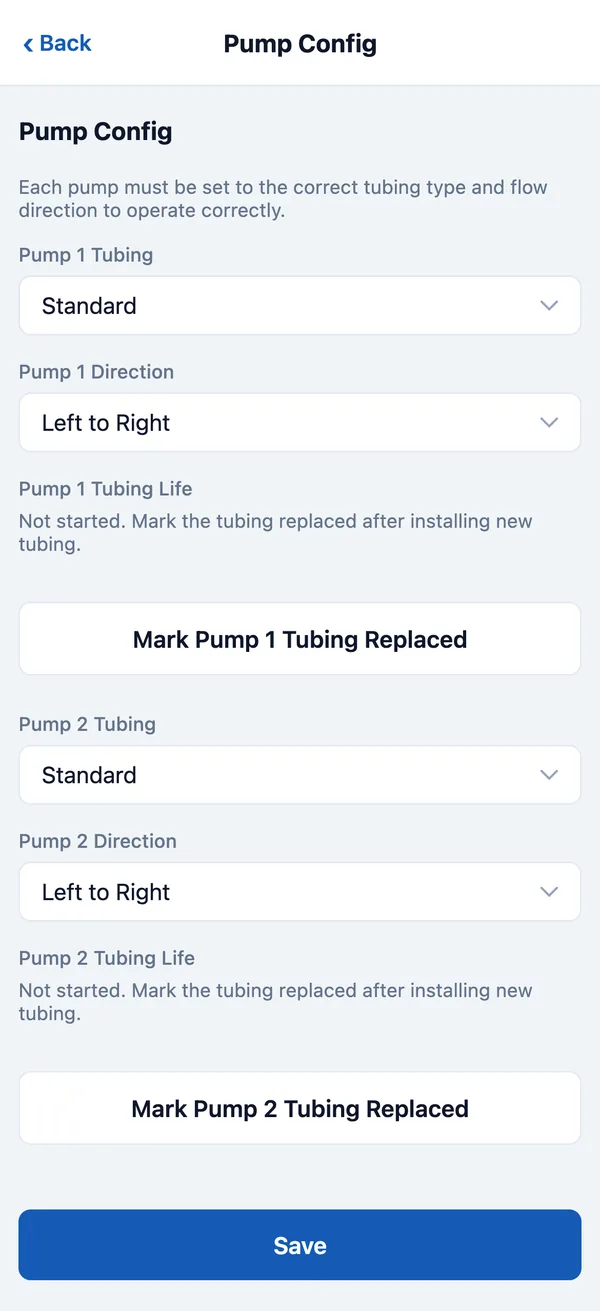
Check the direction when you prime: chemical should move from the container toward the wash. If it moves backward, stop, change the direction, and save.
On DozaLink
On the device’s page, pick the pump at the top. Under Chemical and tubing, set Tubing, Direction (admins), and Chemical, then click Save to device.
Set up dosing · Section 8
Prime and run a pump
Fill the lines and run a pump by hand from the device or DozaLink.
Run a pump by hand to prime it or test it. Point the outlet into a bucket or the wash line first.
Prime
New tubing is full of air. Prime each pump after installing, after replacing tubing, and after a container runs dry.
- In setup mode, tap Manual Dispense.
- Choose the Pump and set Mode to Run until stopped.
- Raise the flow rate to fill faster if you like (up to 5.0 mL/s for white tubing, 3.0 for black).
- Tap Start Dispensing. When chemical flows steadily with no bubbles, tap Stop Dispensing.
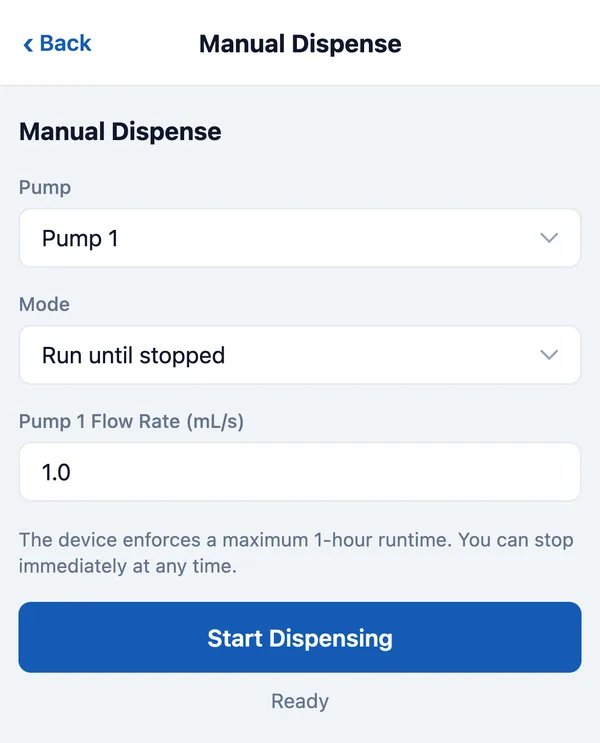
A run that isn’t stopped ends on its own after one hour.
Dispense a set amount
Set Mode to Dispense a volume and enter the volume and flow rate. Both Pumps runs both at once; the volume is for each pump.
From DozaLink
On Devices, click Dispense, choose the pump, set the speed and run time, and confirm. You can stop it early. If you aren’t sure a dose ran, check the pump or Activity before sending another.
Set up dosing · Section 9
Calibrate the pumps
Measure a test dose and save the result so doses are accurate.
Calibration measures what the pump actually delivers with your tubing and chemical, so doses and usage reports are accurate.
When to calibrate
- After installing
- After replacing tubing or changing tubing type
- After switching to a noticeably thicker or thinner chemical
- When doses look off
You need
A measuring cup, graduated cylinder, or digital scale, and a primed pump. With a scale, weigh in grams: for water-thin chemicals, 1 g is about 1 mL. For thicker ones, divide grams by the specific gravity on the product’s safety data sheet.
Calibrate at the flow rate your wash triggers use. The device keeps up to eight calibrated rates for each pump and tubing type and estimates between them.
On the device
- In setup mode, tap Pump Calibration and choose the pump.
- Enter a Test Volume (up to 100 mL) and the Flow Rate you use. The run must finish within 300 seconds.
- Hold the outlet in your container and tap Start Calibration Dispense.
- Enter what came out as Measured Output (mL) and tap Save Measured Calibration.
- Run it again to check.
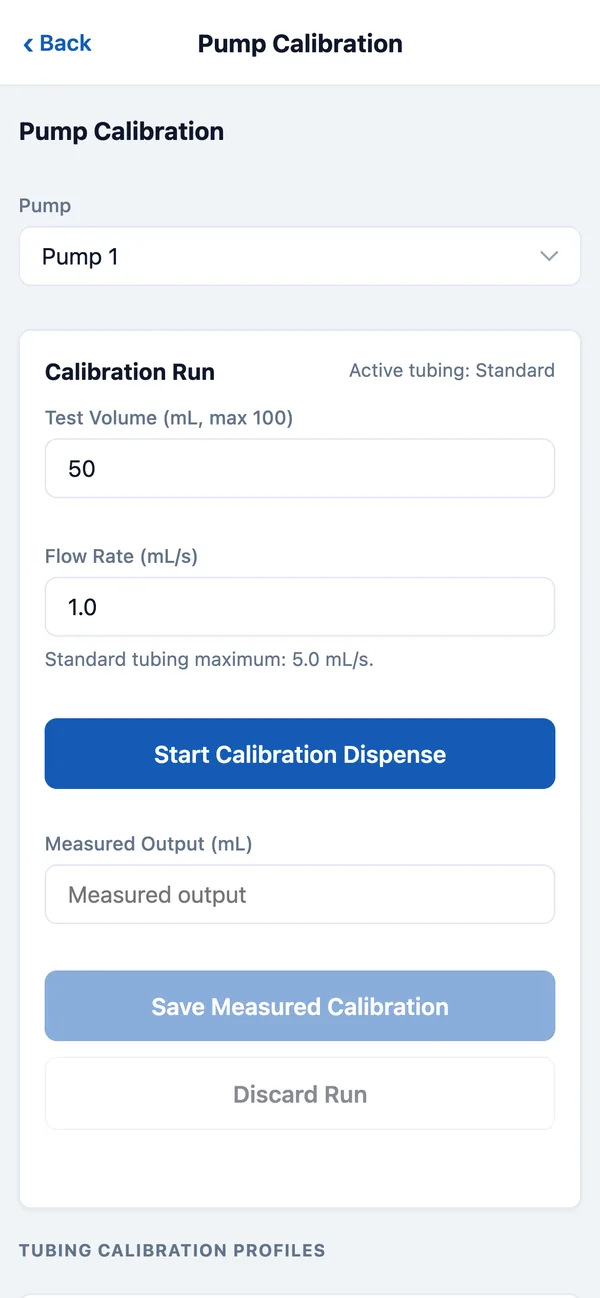
Save only a run that finished normally. If it was interrupted or spilled, tap Discard Run and start again.
On DozaLink
Someone must be at the device to measure. On the device’s page, pick the pump at the top. In the Calibration card, enter the flow rate and a run time (up to 60 seconds) and click Run test. When it finishes, enter what came out as Measured (mL) and click Save calibration.
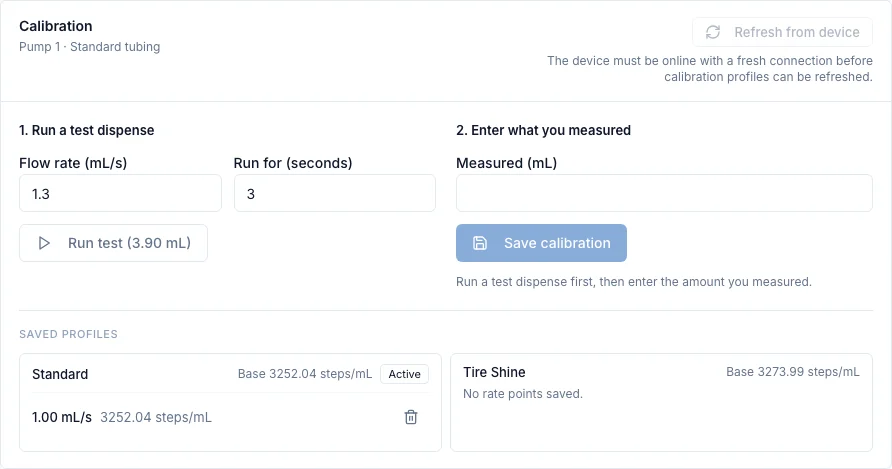
A wrong calibration point can be deleted from the saved profiles. Check the output again afterward.
Set up dosing · Section 10
Set up wash triggers
Choose which pump each signal runs and how much it doses.
For each input and each pump, choose what happens when the wash signal turns on. Either input can run Pump 1, Pump 2, or both. Wiring is covered in Wire the wash signals. To run a pump at set times with no wash signal, see Dose on a schedule.
Dispense a set amount, or until it turns off?
| Dispense a set amount | Dispense until it turns off | |
|---|---|---|
| In one line | The relay is a start button. One pulse = one fixed dose. | The relay is a hold-to-run switch. Pump runs while it is on, stops when it goes off. |
| How much comes out | The Amount each time you enter. Example: 3 mL per car at 1.0 mL/s takes 3 seconds. | Depends how long the controller holds the signal. Example: 1.0 mL/s for a 20-second arch = 20 mL. |
| If the signal drops early | Pump keeps going until the dose is finished. | Pump stops right away. |
| If the signal stays on | Nothing extra. It must go off and on again for the next dose. | Pump keeps running until the signal drops or a safety limit is hit. |
| Good for | A set amount per car. Controllers that pulse briefly. Most chemical dosing. | Chemical that should flow the whole time a step is on. Controllers that hold the output on for the step. |
Settings
| When Relay 1 turns on | Dispense until it turns off or Dispense a set amount. Don’t use this relay turns the pair off. |
|---|---|
| Flow rate (mL/s) | Pump speed. Up to 5.0 for white tubing, 3.0 for black. |
| Amount each time (mL) | Set amount only. The pump runs whole seconds, so the page shows what it will dispense, for example Takes 13 s · dispenses 10.4 mL. |
| Wait before starting (seconds) | Wait 0–300 seconds after the signal before pumping. |
| Maximum run time (seconds), Maximum volume (mL) | Until it turns off only, under Safety limits. Stops the pump if the signal stays on too long. |
- A set amount starts when the signal turns on. The signal must turn off and on again for the next dose, including after power-up or a Safety Stop.
- Signals that arrive while a set amount is running are ignored.
- With Dispense until it turns off and a wait, the signal must still be on when the wait ends.
- Leave unused relay and pump pairs as Not used.
Set it on the device
- In setup mode, tap Dispense Config. In the pump’s card, keep Runs from on Relays.
- Tap Edit or Set up on the relay (Relay 1 or Relay 2).
- Choose Dispense until it turns off or Dispense a set amount, enter the settings, and tap Save Relay 1. Repeat for each pair you use.
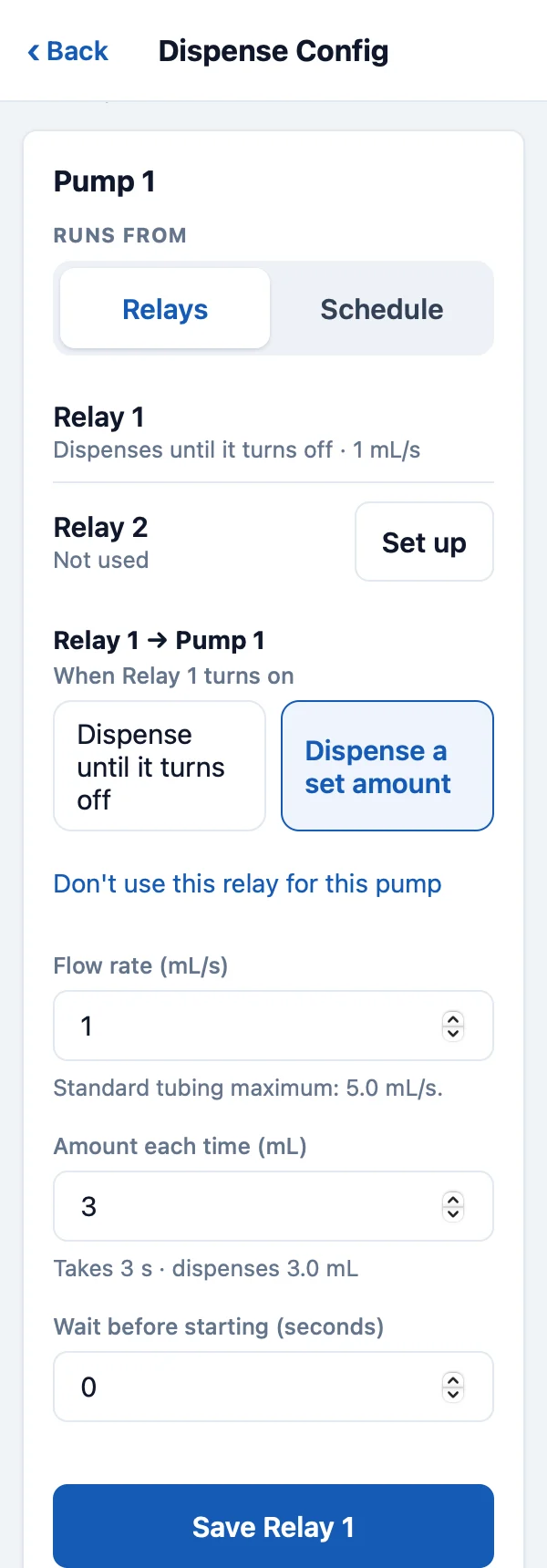
To make the same changes from anywhere, see Change doses at any site.
Test
Run each wash function with the outlet in a measuring container. Check that only the intended pump runs and that the amount is right. The red Safety Stop button in Dispense Config stops all pumps.
Set up dosing · Section 11
Dose on a schedule
Run a pump at set times on set days, with no wash signal.
A pump can dose on a schedule instead of from a wash signal: a set amount per day, on set days, at set times. The device stores the schedule and runs it itself, so doses continue if the internet drops. While a pump is on a schedule, both relays for that pump are off, so a wash signal can’t start it.
Before you start
- The device needs firmware 1.0.0 or newer. On older firmware, DozaLink says Schedule requires firmware 1.0.0 or newer. See Firmware updates.
- The device needs a location with a time zone, set in Locations. Doses run on the site’s local time.
- Set the tubing and calibrate the pump first (Calibrate the pumps). On DozaLink, scheduled doses pump at the tubing’s top speed.
- The device must have reported its settings to DozaLink once. If it hasn’t, the Schedule choice says so. Keep it online and try again in a few minutes.
Set a schedule on DozaLink
On dozalink.com- Open Devices, click Settings on the device, and pick the pump at the top.
- Under Dispense Config, set Runs from to Schedule.
- It starts as one dose a day: 100 mL at 8:00 AM.
- Set the Start date and each phase, then check Next doses.
- Click Save to device. If a relay was running this pump, DozaLink asks Turn off relays? first.
"Device applied the configuration changes." Under the schedule: On the device: Running on the device, with the next dose.
Saved templates
Save as template keeps a schedule for every pump in your organization. On another pump, choose Start from a saved template or Replace with a saved template. It starts today, at no more than that pump’s top rate. Rename or delete templates in the same list.
Phases and settings
A schedule is one to four phases that run in order. Each phase has these settings.
| Amount per day | In mL, liters, or gallons, split equally across the times of day. |
|---|---|
| How often | Every day, every other day, every X days (up to 30), or specific days of the week. |
| Times of day | Up to 8, at least 10 minutes apart. Split evenly between two times fills them in. |
| How long | A number of days, then the next phase starts. The last phase can run Until I change it. |
| Lower the amount over time | Lower the daily amount by a percentage every so many days, never below the amount you set. |
| If the device misses a dose (Advanced) | How late a dose may still run. Default: up to 2 hours late. After that it is skipped and listed in Activity as missed. |
Untick Schedule is on to pause dosing and keep the program. On the day the clocks change, a dose set between 1:00 and 3:00 AM may run up to an hour early or late.
Set a schedule on the device
On the device (setup mode)For a site without internet. If an admin locked local controls, the page says Schedules are managed from DozaLink.
- In setup mode, tap Dispense Config. Schedules are at the top of the page.
- If the page says Pump clock not set, tap Set clock from this phone. With Wi-Fi, the device gets the time from the internet.
- Tap Schedule for the pump. It starts as one dose a day at 8:00 AM.
- Choose the Time zone, the Start date, and the phases, then tap Save schedule.
DozaLink shows the schedule the next time the device is online.
Missed doses and safety limits
- If the device was off, its clock wasn’t set, or the pump was busy at a dose time, the dose runs when it can, up to the late limit. Only the latest missed dose is made up, so doses never run back to back.
- Missed doses appear in Activity as Missed scheduled dose, with the reason.
- The device never pumps more in a day than the schedule plans. A dose over that limit is skipped as a safety limit.
- If the device restarts unexpectedly several times, its schedules pause. They resume after an hour of normal running, or when you save a change to the device’s settings.
- Stop on DozaLink or Safety Stop on the device cancels a scheduled dose that is running or waiting. The schedule continues with the next dose.
Go back to wash triggers
Under Dispense Config, choose Relays and save. DozaLink puts back the relay settings the pump had before. If there were none, Relay 1 is set to Trigger for 3 seconds at 1 mL/s and Relay 2 is off, and DozaLink asks you to check them before saving.
Manage with DozaLink · Section 12
Change doses at any site
Check device status and change doses from dozalink.com.
Most day-to-day work happens on dozalink.com: checking devices and changing doses at any site.
Find the device
- Choose a site in the location menu at the top, or keep All Locations.
- Open Devices and click Settings on the device.
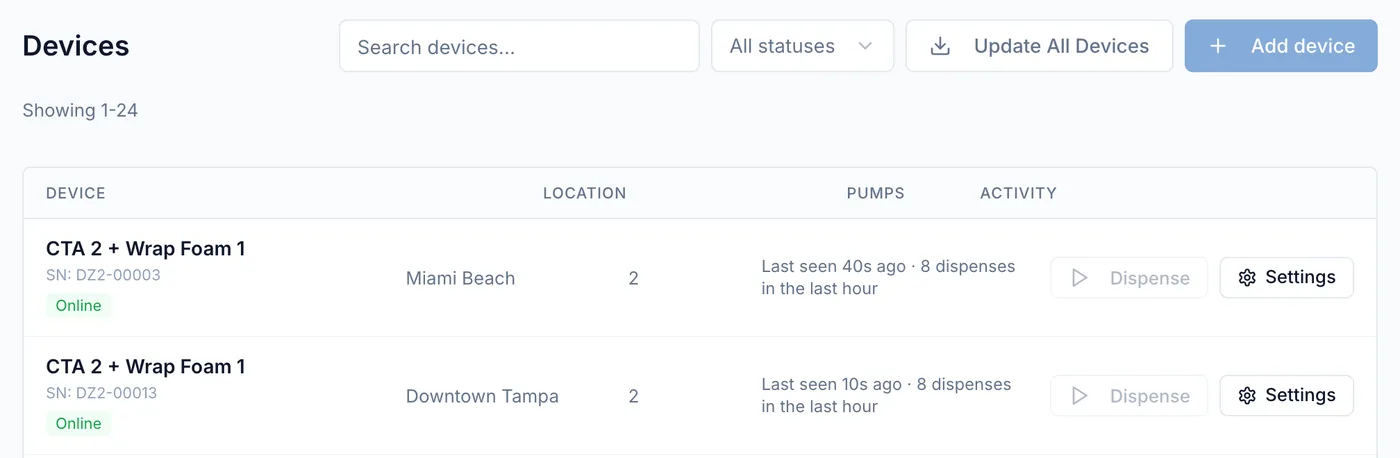
| Online | Connected to DozaLink. |
|---|---|
| Offline | Not connected. Check power, Wi-Fi, and the site’s internet. Wash-triggered dosing continues while the device has power. |
| Update available | Newer firmware is ready. See Firmware updates. |
Change the dose
- Pick the pump at the top. Under Dispense Config, with Runs from set to Relays, find the relay (Relay 1 or Relay 2) that runs it.
- Change Flow rate (mL/s), Amount each time (mL), or both. The card shows how long the pump runs and what it dispenses, for example Takes 4 s · dispenses 4.0 mL.
- Click Save to device.
"Device applied the configuration changes."
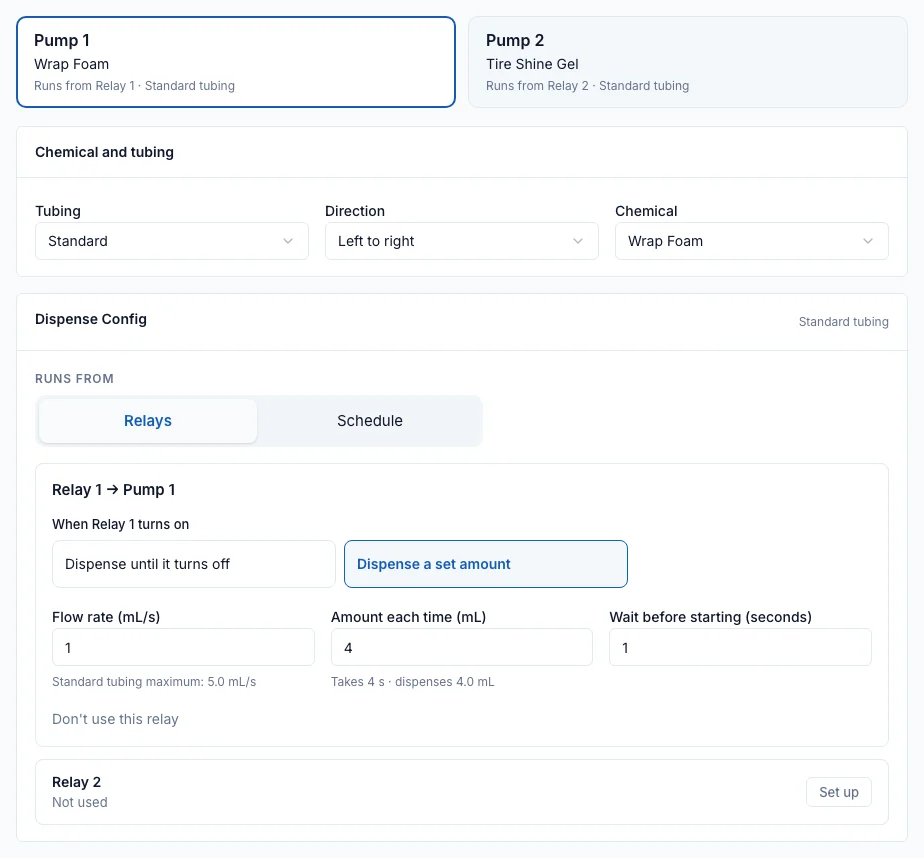
The device must be online to accept a change. If it’s offline or busy, DozaLink says so and nothing is saved. Settings are changed one device at a time. The Audit Log records who changed what.
Other common tasks
- Run a pump now: Dispense on the Devices list. See Prime and run a pump.
- Change a pump’s chemical: Chemical under Pump Configuration.
- Dose at set times instead of from a signal: Schedule under Dispense Config. See Dose on a schedule.
- Rename or move a device: Device Name and Location in the Configuration card.
- Check tubing wear: Tubing life on the device’s page.
Manage with DozaLink · Section 13
Chemicals and stock
Add chemicals with their cost and keep stock levels current.
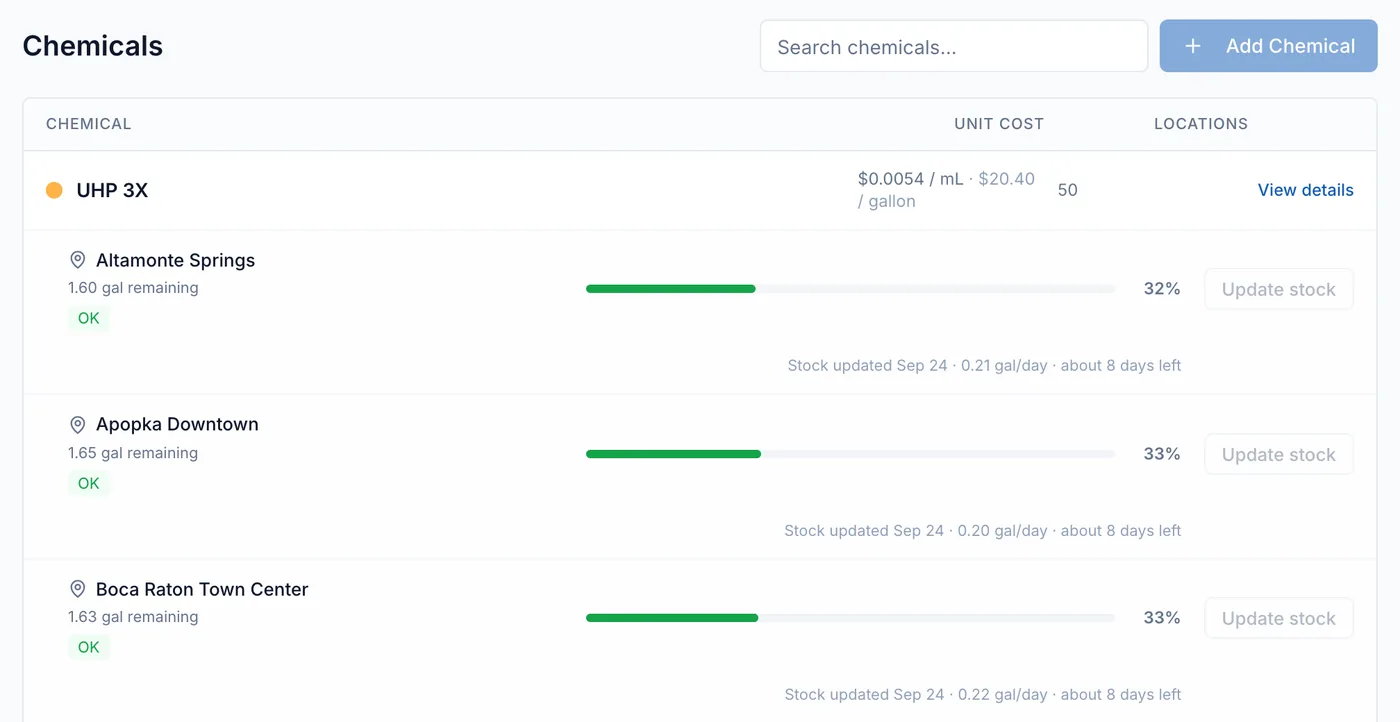
Add each chemical once with its price and assign it to the pumps that dose it. DozaLink then turns doses into cost and keeps a running stock estimate for each site.
Add a chemical
- Open Chemicals and click Add Chemical.
- Enter the name, the unit you buy it in (gallon or liter), and the Cost per Unit ($).
- Optional: turn on Add initial inventory and enter how much is on hand at a location.
- Click Create, then assign it to a pump under Pump Configuration on the device’s page.
Record deliveries and counts
On Chemicals, click Update stock for the chemical and location. Choose Add stock for a delivery or Set stock level for a count. Between updates, DozaLink subtracts recorded doses and shows about how many days of supply are left.
Change a price
Open the chemical and change its Cost per Unit ($). New doses use the new price; earlier doses keep the cost they were recorded with.
Manage with DozaLink · Section 14
Usage and cost per car
Read the dashboard, compare sites and chemicals, and download reports.
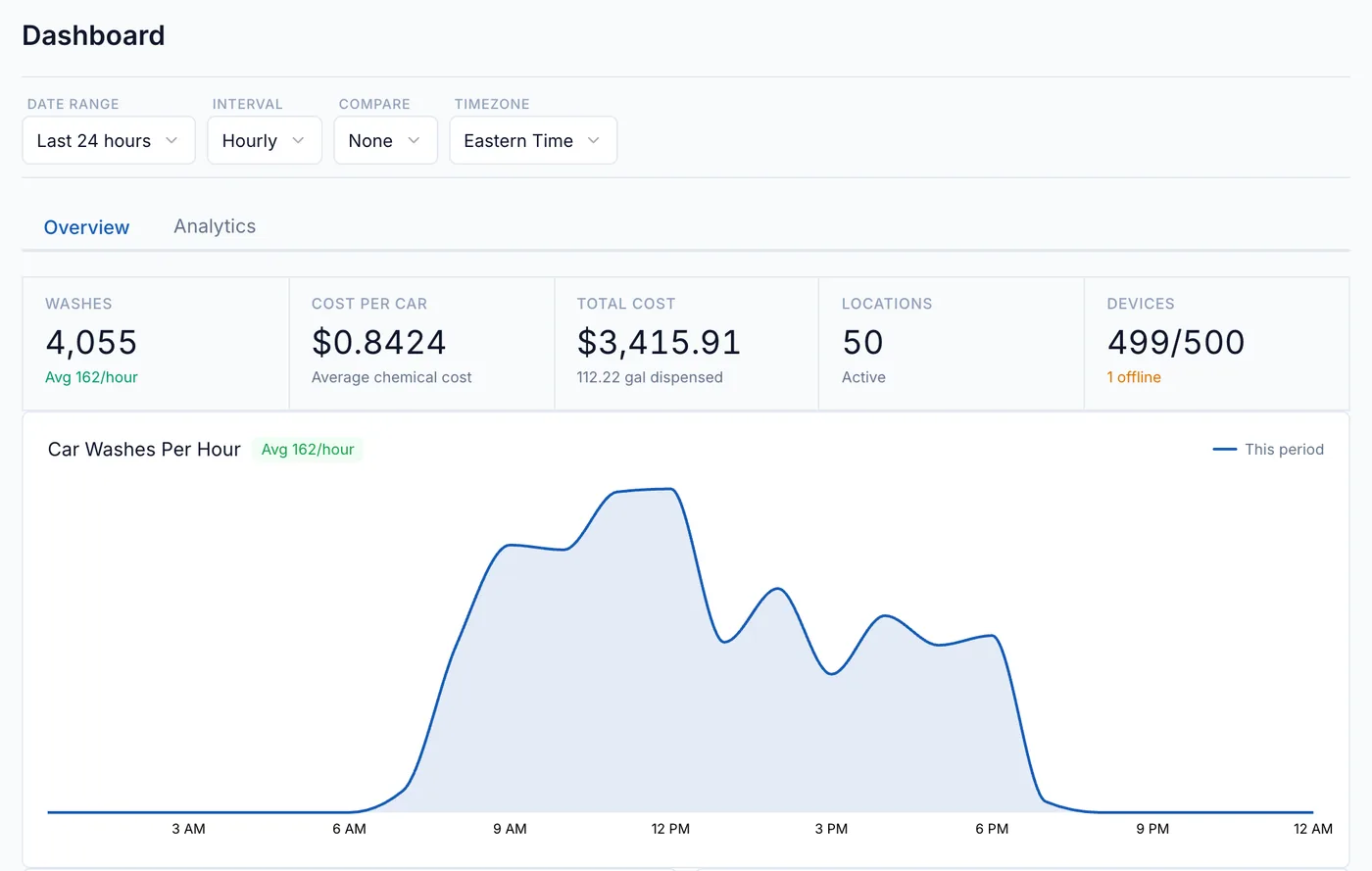
Home shows chemical use and cost for one site or all of them. Use the location menu and the date controls to choose what to look at.
What the numbers mean
| Volume | The sum of recorded doses. |
|---|---|
| Cost | Each dose’s volume × its chemical’s cost per unit. |
| Washes | An estimate: the busiest pump at each site in each hour. |
| Cost per car | Cost ÷ estimated washes. |
Compare and export
The Analytics tab breaks cost and volume down by location, chemical, and device. Click Download CSV to export what’s on screen.
Individual events
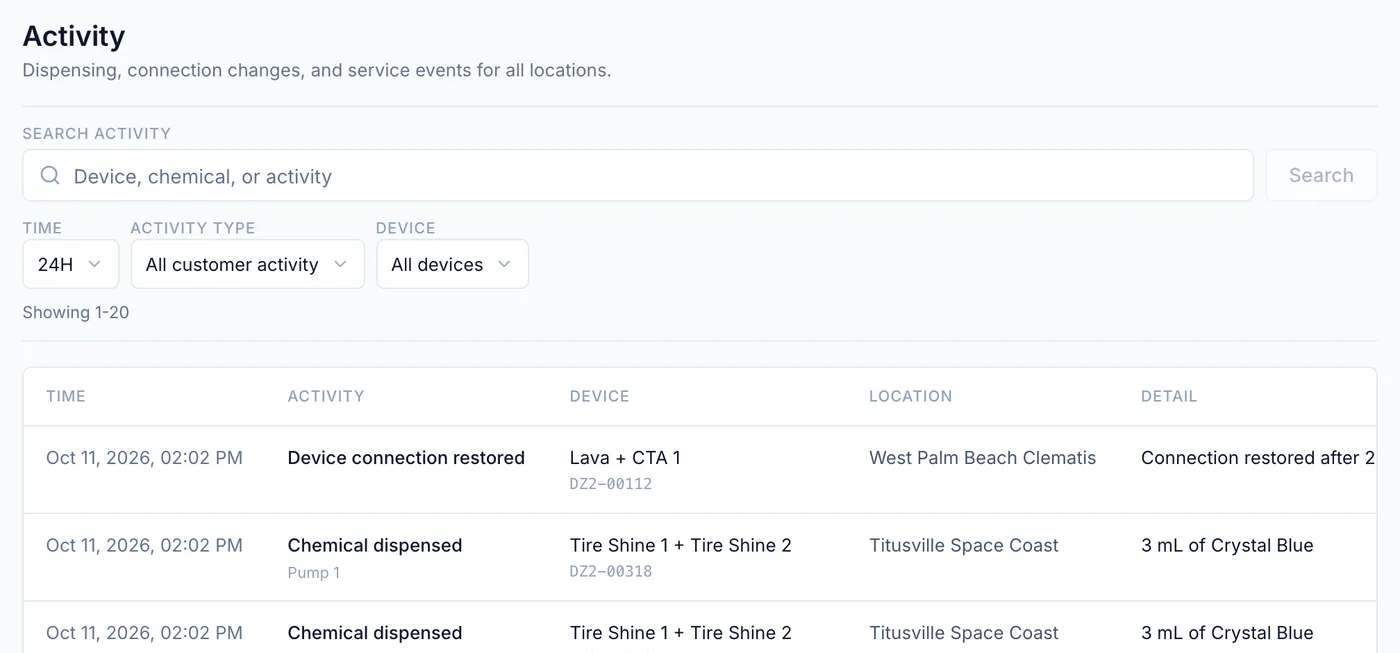
Activity lists recorded doses (manual, wash-triggered, or scheduled), missed scheduled doses, connections, pump issues, and updates. Filter by time, type, and device.
Manage with DozaLink · Section 15
Sites, team, and billing
Add locations, invite people, review changes, and manage the subscription.
These pages are for owners and admins.
Add a location
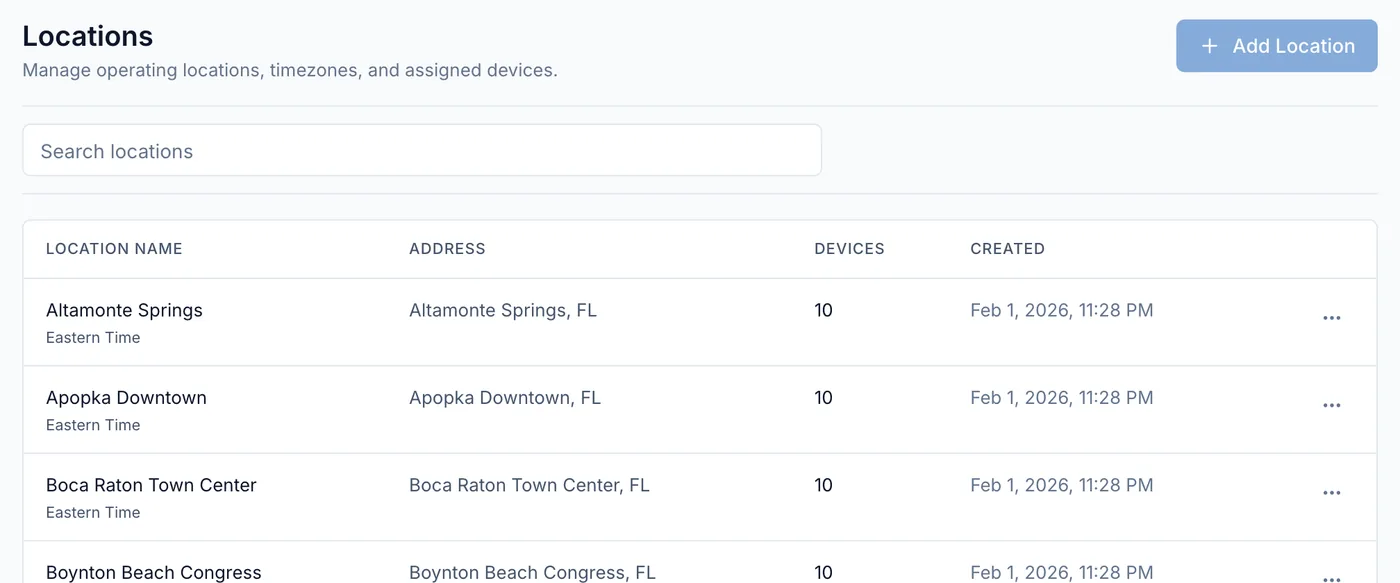
Open Locations, click Add Location, and enter the site’s name and address. The time zone fills in from the address. Assign devices to it when you link them.
Invite people
Open Team, click Invite Member, enter their email, and choose a role and the locations they can see (leave empty for all). They get an email to join.
| Role | Can |
|---|---|
| Viewer | See devices, activity, and reports. |
| Operator | Also run pumps, link devices, calibrate, change doses, and update stock. |
| Admin | Also change pump direction, lock local controls, update firmware, and manage locations and team. |
| Owner | Admin access plus billing. |
Audit log
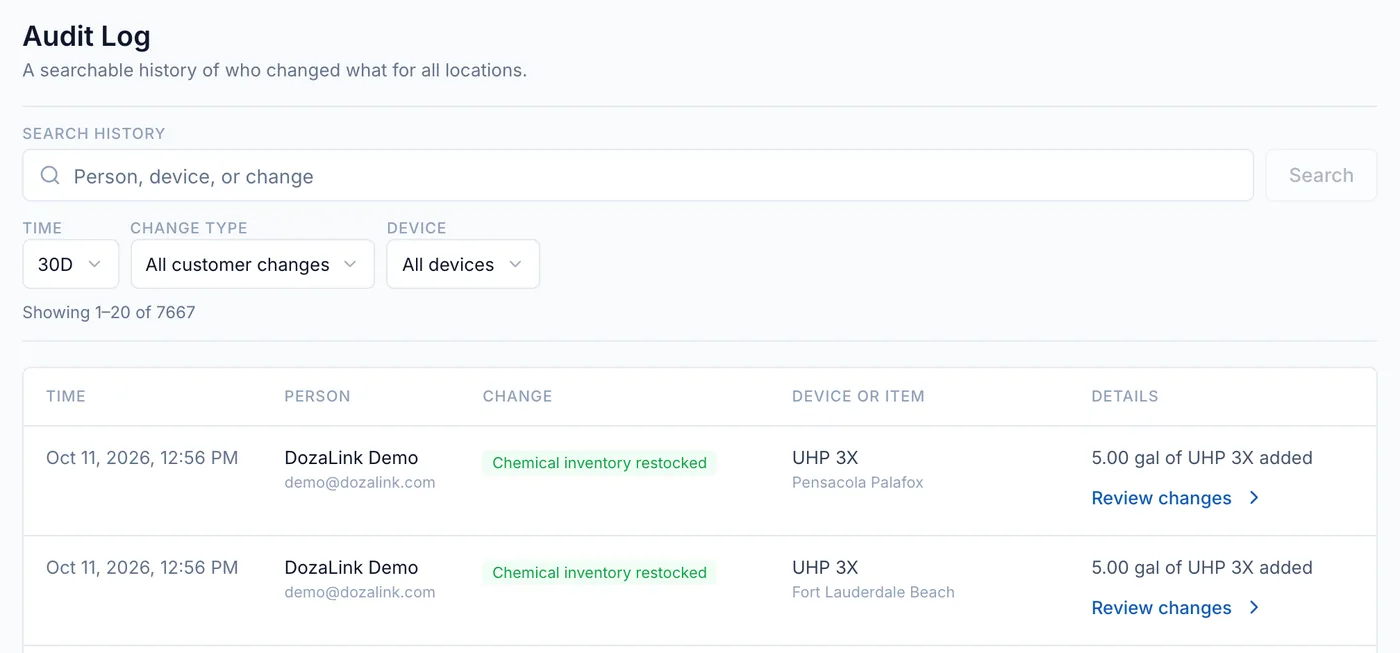
Audit Log lists every change to devices, calibration, chemicals, and team access. Click Review changes on an entry to see the before and after values.
Billing
DozaLink is billed monthly per linked device, with no charge per user or location. The owner starts the subscription and manages payment on Billing; it must be active before a device can be linked. If a payment fails, there’s a 7-day grace period before remote changes stop. Devices keep dosing with their saved settings.
Maintain · Section 16
Replace tubing
Replace worn pump tubing and reset its usage counter.
Pump tubing wears with use. Worn tubing delivers less and can split.
| Tubing | Replace after about |
|---|---|
| White (Standard) | 1,000 pumping hours |
| Black (Tire Shine) | 100 pumping hours |
The Tubing life bar on the device’s page turns amber at 80% and red at 100%. Replace sooner if the tubing is cracked, flattened, or leaking.
Replace it
- Turn off the wash function and isolate power to the device. A stop on screen is not a safety interlock.
- Wear gloves and eye protection; the tube is full of chemical.
- Open the pump head, remove the old tube, fit a new one of the same color, and close the head.
- Restore power.
Reset the counter
On the device’s page, click Reset tubing life for that pump. In setup mode, tap Reset Pump 1 tubing life (or Pump 2). Then prime and calibrate the pump.
Maintain · Section 17
Firmware updates
How device software is kept up to date.
Firmware is the software inside the device. Doza rolls out updates to devices connected to DozaLink, so there is nothing you need to do as long as the device has good Wi-Fi.
During an update the device downloads the firmware, restarts, and checks it. It doesn’t dose while it restarts. Don’t unplug it during an update.
If the Wi-Fi drops while the device downloads an update, DozaLink tries again on its own a few times over the next hour or two, picking up where the download stopped. The device keeps running its current firmware until an update finishes.
Update now (optional)
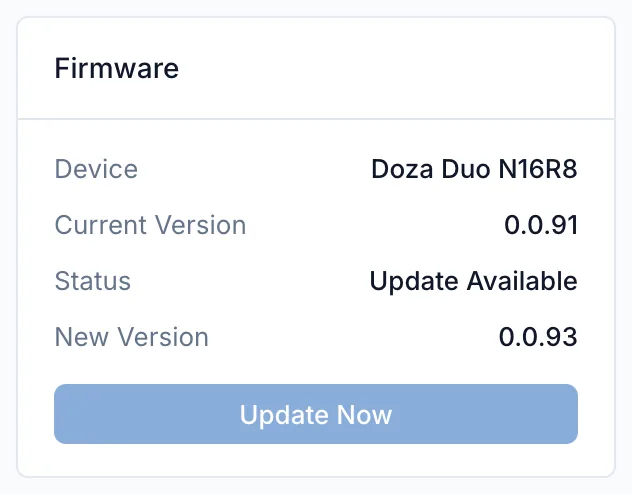
Owners and admins can install an available update right away: on the device’s page, in the Firmware card, click Update Now. To update every device at a site, use Update All Devices on the Devices page. Pick a quiet time, since each device restarts.
A device on Wi-Fi that isn’t linked can update from setup mode: tap Device Info, then Start Update.
Maintain · Section 18
Troubleshooting
Find the symptom and the next thing to check.
I can’t find the DOZA-XXXX Wi-Fi network
- Turn the device off and on once, wait 30 seconds, and refresh the phone’s Wi-Fi list.
- Stand near the device.
- Setup mode closes after about five idle minutes. Power-cycle to open it again.
The setup page won’t open
- Go to http://192.168.4.1/ (not https).
- Turn off mobile data, and stay connected when the phone warns there’s no internet.
The device won’t join the Wi-Fi
- Use the 2.4 GHz network, and check the name and password exactly.
- Guest networks with a sign-in page don’t work.
- If the signal at the device is weaker than −80 dBm, improve coverage.
DozaLink shows the device as Offline
- Check the device has power and the site’s internet works.
- If the Wi-Fi password changed, update it in setup mode.
- Turn the device off and on once and wait two minutes.
The pump turns but nothing comes out
- Prime the pump.
- Check the direction: chemical should move toward the wash.
- Check the suction line reaches into the container and the container isn’t empty.
- Isolate power and check the tubing is seated in the pump head.
The wash doesn’t trigger the pump
- Check that input and pump pair isn’t Disabled and the setting was saved.
- The signal must turn off and then on. After power-up or a Safety Stop, cycle the wash function once.
- Check the input is wired to the right controller output, and the output reads 24–120 V when on.
The pump runs too long
- With Dispense until it turns off, the pump runs while the signal is on. Set its Safety limits, or use Dispense a set amount.
- Check the controller output isn’t stuck on.
- Safety Stop in Dispense Config, or Stop on DozaLink, stops the pump.
The dose is wrong
- Calibrate at the flow rate you use.
- Check the tubing setting matches the tubing color: white is Standard, black is Tire Shine.
- Replace worn tubing.
- With Dispense a set amount, check Amount each time and the dispensed amount shown under it.
A scheduled dose didn’t run
- Open Activity and look for Missed scheduled dose. It shows the reason.
- Check the device has power and its clock is set. After a restart it needs internet, or Set clock from this phone in setup mode.
- On the device’s page, check that Schedule is on, the start date has passed, and the pump’s tubing and calibration are set.
- If DozaLink says the schedule is paused after unexpected restarts, it resumes after an hour, or when you save a change to the device.
Setup mode says controls are locked
- An admin locked them. Make the change on DozaLink, or ask the admin to click Allow local controls.
Linking fails
- Read the message. Billing and Wi-Fi are the usual causes. Fix it and retry with the same label.
- A device belongs to one organization at a time. If it was used elsewhere, that organization must unlink it.
Still stuck?
Email [email protected] with the device’s serial number (on the label, or under the device name on DozaLink) and what happened.
Reference · Section 19
Specifications and limits
Pump, signal, connectivity, electrical, and physical specifications, and setting limits.
Delivered volume depends on calibration, chemical thickness, and line conditions.
Pumps
| Pumps | 2 independent peristaltic pumps. Chemical touches only the tube. |
|---|---|
| Flow rate | 0.1–5.0 mL/s with white tubing; 0.1–3.0 mL/s with black (tire shine) tubing |
| Pump tube | BPT, 4.8 mm ID × 8.0 mm OD (3/16 × 5/16 in) |
| Tubing life | About 1,000 pumping hours (white), 100 hours (black) |
Wash signals and dosing
| Inputs | 2, each 24–120 V AC or DC, polarity independent |
|---|---|
| Modes | Trigger (one signal = one dose), Relay (runs while the signal is on), Disabled, or Schedule (doses at set times with no signal) |
| Dispense time | 1 second to 24 hours (Trigger) |
| Delay before start | 0–300 seconds |
| Schedule | Firmware 1.0.0 or newer. Up to 4 phases per pump; 1–8 doses a day, at least 10 minutes apart; every 1–30 days or chosen weekdays; up to 100 L a day; a late dose runs up to 12 hours late (2 hours by default) |
| Safety limits (until it turns off) | Maximum run time and maximum volume, up to 100,000 mL |
| Calibration | Up to 8 flow rates per pump and tubing type. Device: up to 100 mL within 300 s. DozaLink: runs up to 60 s. |
| Manual run | Run until stopped ends after 1 hour |
Connectivity
| Wi-Fi | 2.4 GHz 802.11 b/g/n, main and fallback network. Improve coverage if the signal is weaker than −80 dBm. |
|---|---|
| Setup mode | Network DOZA-XXXX, password dozasetup, page http://local.doza/ or http://192.168.4.1/ |
| Security | Encrypted connection with a unique certificate per device |
| Without internet | Wash-triggered dosing continues; local-only mode available |
| Firmware | Updated over the air |
Electrical and physical
| Device input | 24V DC, about 30 W with both pumps running |
|---|---|
| Power supply | 150 W, 24V; powers up to two devices |
| Enclosure | Polycarbonate, silicone-gasketed lid |
| Size | 206.6 × 127.0 × 77.9 mm (8.1 × 5.0 × 3.1 in) with flange; pump heads extend from the front |
| Weight | About 1.5 kg (3.3 lb) |
| Mounting | Four #8 holes, 187.3 × 88.9 mm (7.375 × 3.500 in) pattern |
| Environment | Indoors, out of direct spray |