
Connect · Section 5
Connect to Wi-Fi
Open setup mode on the device and join the site’s Wi-Fi.
The device has its own setup Wi-Fi and page, called setup mode. Use it with a phone to connect the device to the site’s Wi-Fi. No app or internet is needed.
Open setup mode
- Turn the device off and on once. Setup mode opens during startup.
- On your phone, join the Wi-Fi network
DOZA-XXXXwith the passworddozasetup. If the phone warns there’s no internet, stay connected. - The setup page usually opens by itself. If not, go to
http://local.doza/orhttp://192.168.4.1/.
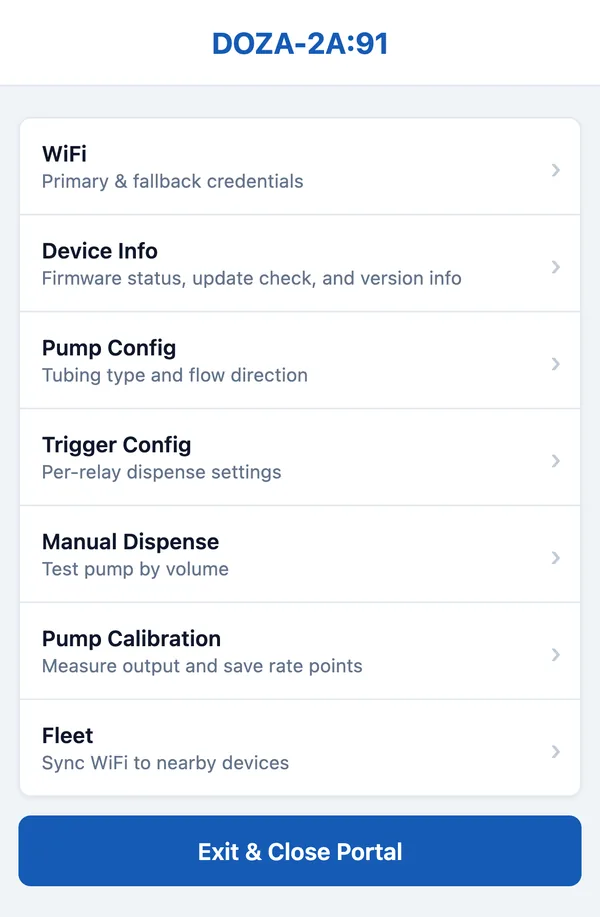
Setup mode closes after about five idle minutes, or when you tap Exit & Close Portal. Power-cycle the device to open it again. Anyone nearby with the password can use it while it’s open; an admin can lock pump settings from DozaLink.
Join the site’s Wi-Fi
- Tap WiFi and check that WiFi Enabled is on.
- Under Primary Network, type the 2.4 GHz network name exactly, and its password.
- Optional: add a Fallback Network to use if the first is down.
- Tap Save, then Exit & Close Portal.
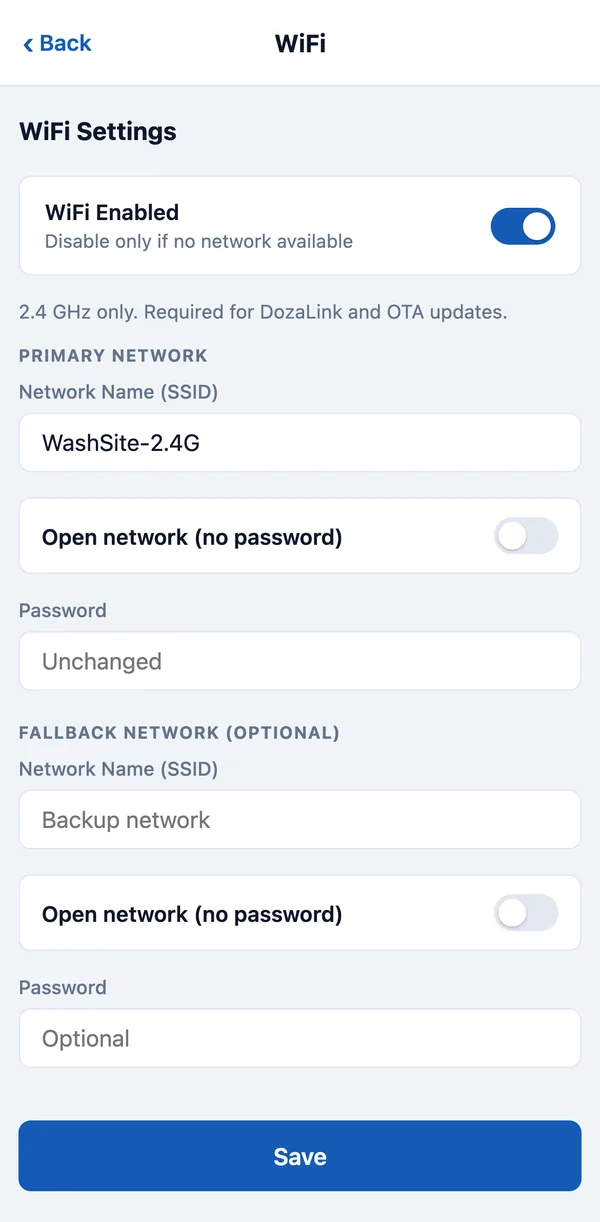
To check it, reopen setup mode and tap Device Info, which shows the saved network and checks for updates. After linking, DozaLink shows the device as Online.
Several devices at one site
Set up Wi-Fi on one device, then tap Fleet and Sync WiFi Credentials to send it to other devices that are in setup mode nearby. Check that each one comes online.
No Wi-Fi
Turn WiFi Enabled off and tap Save to run local-only. Wash-triggered dosing works normally; remote changes, reports, and firmware updates don’t.